
Use AI on sensitive documents without exposing them.
Secure Automation finds names, IDs, dates, addresses and other identifiers in Word, Excel and text, swaps them for placeholders before you share with an AI model, and puts the originals back afterwards. Everything runs on your computer.
- Nothing is uploaded
- Encrypted local vault
- Word · Excel · CSV · TXT · Markdown
How it works
Mask, share, restore.
Built for clinical, GxP and corporate teams who want AI's help without sending protected data anywhere it shouldn't go.
Scan
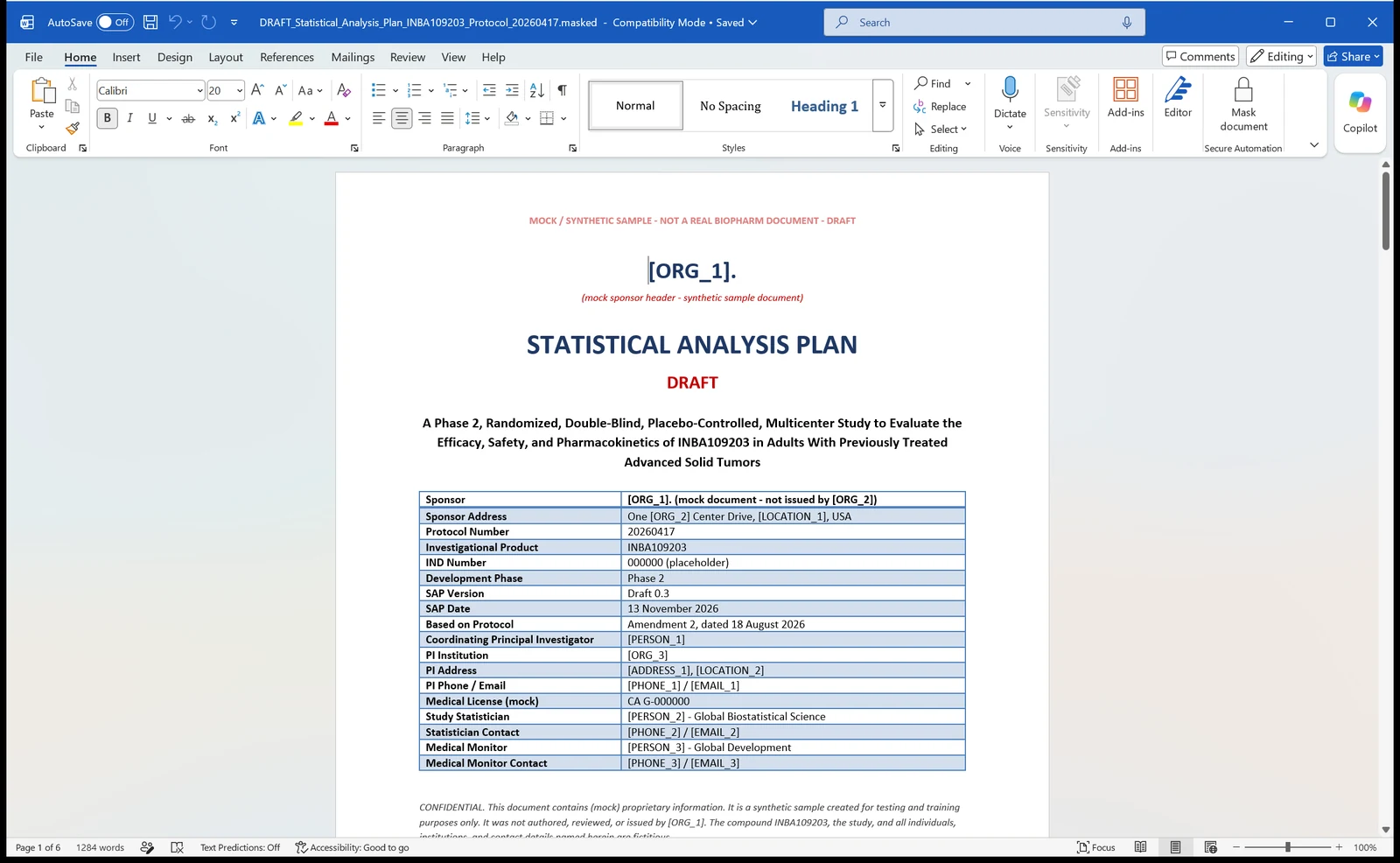
Open a document in Word or Excel and click Mask document, or paste text into the app.
Review
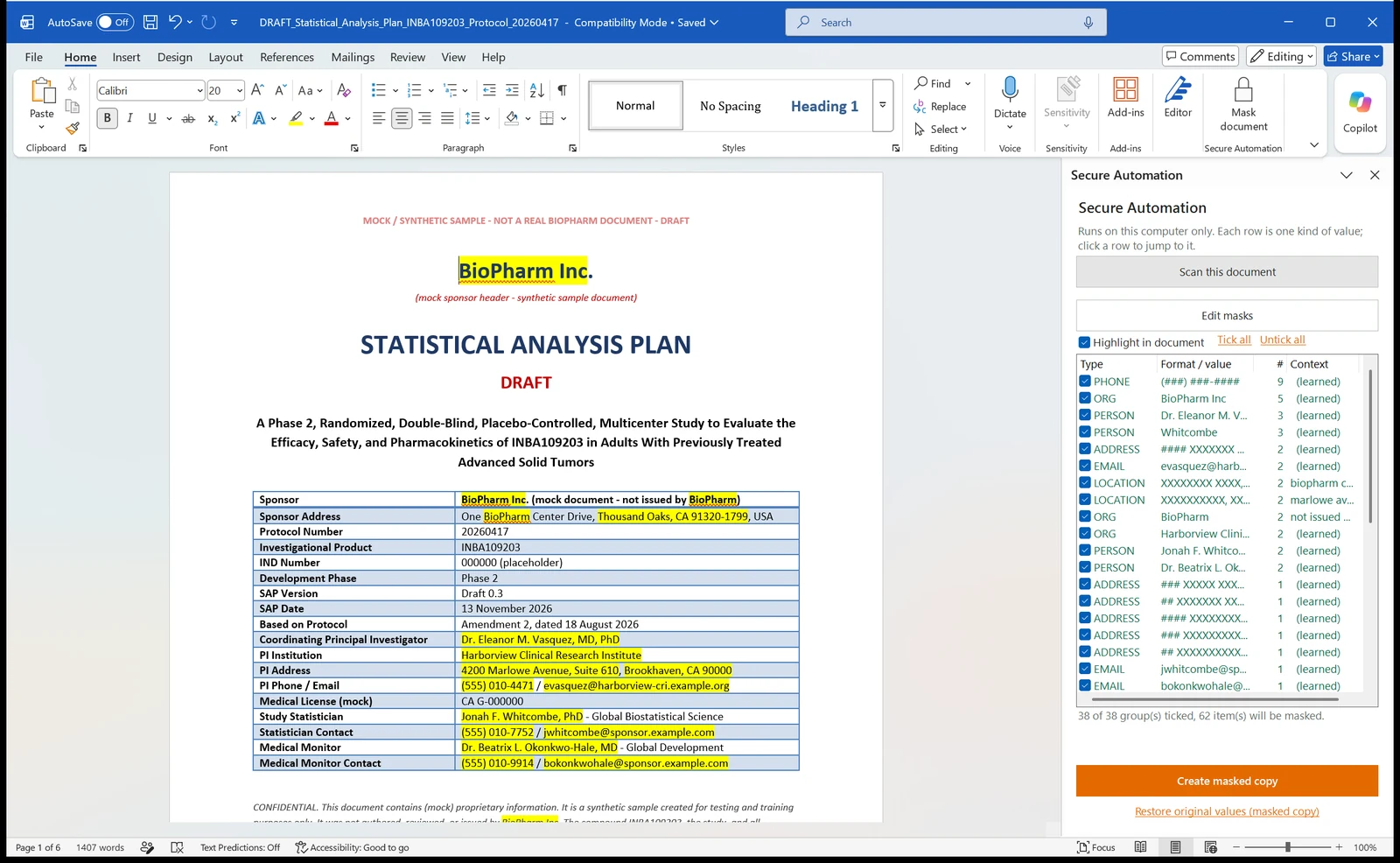
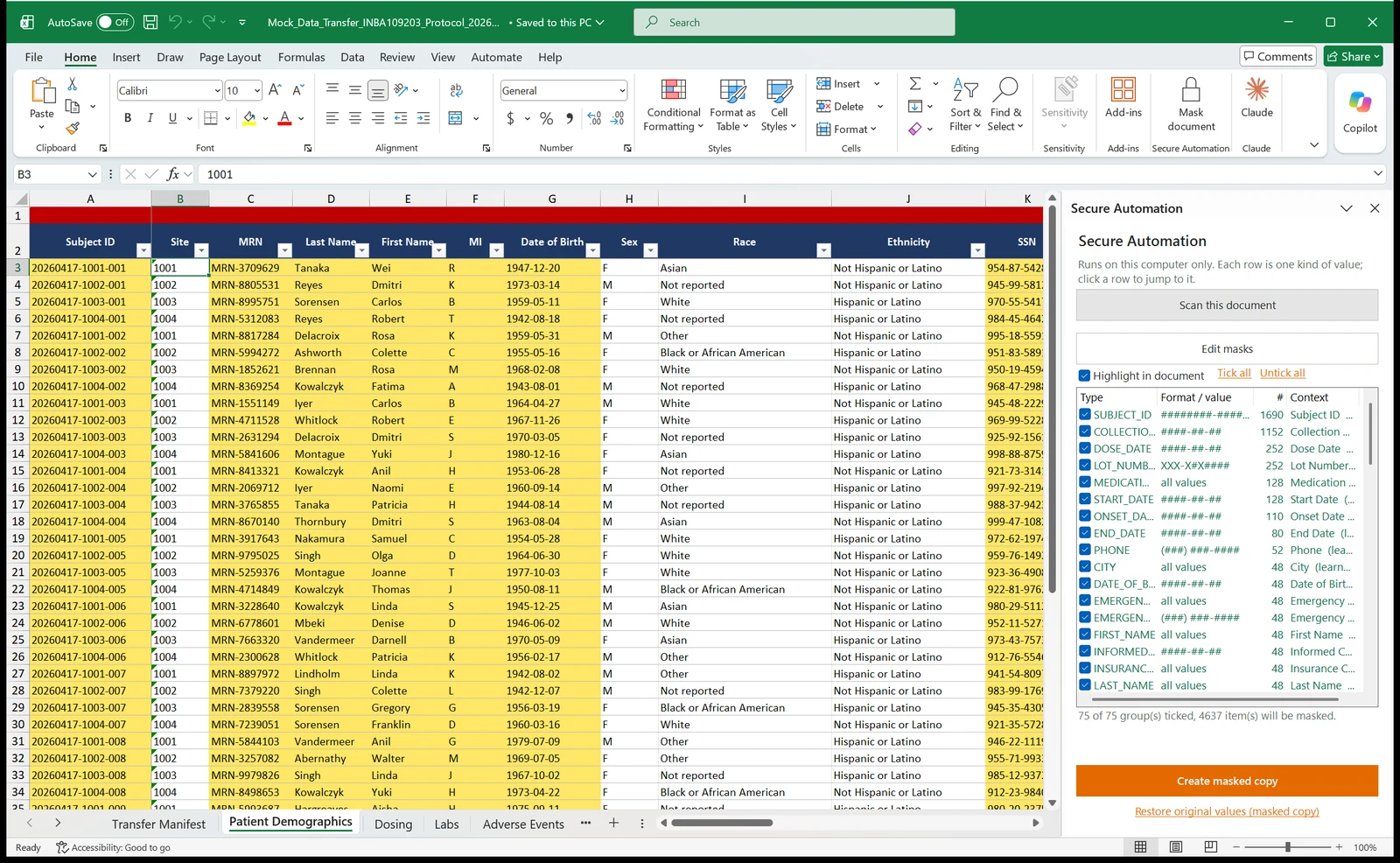
Yellow will be masked, grey is kept. Untick what to keep and mask anything the scan missed.
Share
Create a masked copy with placeholders like [PERSON_1] and give it to your AI model.
Restore
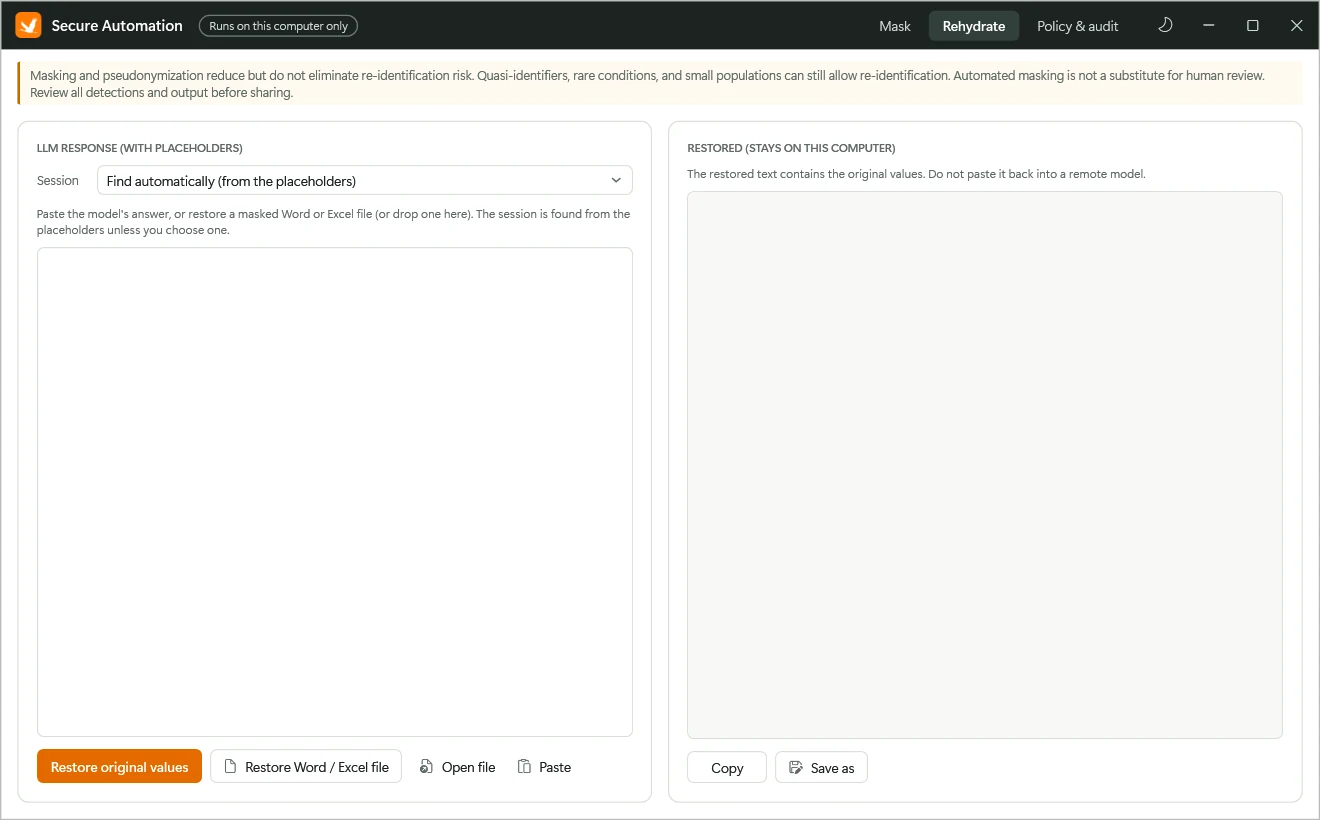
Paste the answer or open the edited file to put the original values back, locally.
See it in action
Works where your documents already live.
Features
Privacy you can explain to an auditor.
Nothing is uploaded
Scanning and masking run locally. Mappings live in an encrypted SQLite vault protected by Windows for your account.
Inside Word & Excel
A Secure Automation sidebar on the Home tab scans, masks and restores without leaving your document.
Consistent placeholders
The same value always gets the same placeholder, like [PERSON_1], so AI answers stay coherent.
Text, CSV and Markdown
Paste text or open files in the app, add keyword or pattern rules, and choose tokens or realistic fake values.
Learns your choices
Row decisions are remembered, so the next document like this one starts closer to right.
Audit without exposure
The audit log records what was masked by type and count, never the values.
Download
Get Secure Automation
Secure Automation for Windows Coming soon
Version 1.0 will be available to download here once it's published. Join the release list and we'll email you the moment it's ready.
Requirements: Windows PC · Microsoft Word and Excel desktop apps for the sidebar (optional for pasted text and CSV/TXT/Markdown).
User guide
Everything you need, step by step.
Adding the sidebar to Word and Excel, masking documents and pasted text, editing masks, restoring originals, settings, and the full placeholder reference.
Open the user guide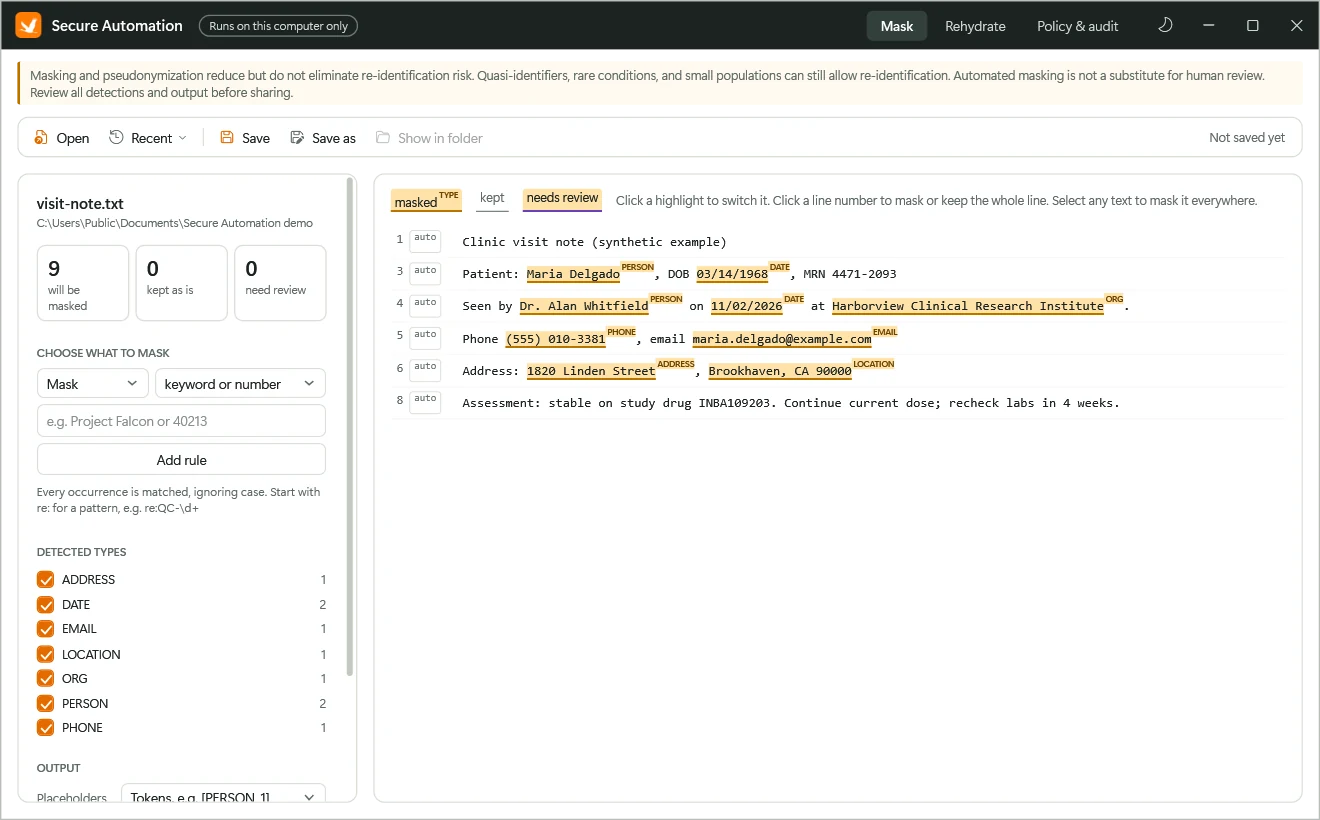
FAQ
Common questions
Does Secure Automation upload my documents?
No. Scanning, masking and restoring all run on your own computer. Placeholder mappings are kept in an encrypted local vault, and nothing leaves your PC unless you copy masked text or send a masked file yourself.
Which files does it work with?
Word (.docx) and Excel (.xlsx) through a sidebar inside Word and Excel, plus pasted text, CSV, TXT and Markdown in the app itself.
Will it find every sensitive value?
The scan is a fast first pass that finds names, IDs, dates, addresses, phone numbers, emails and more. You are the second pass: review the highlights and mask anything it missed, such as internal record numbers. Your choices are remembered for similar documents.
How do I get the original values back?
Paste the AI model's answer into the Rehydrate tab, or open a masked file (even one a model or colleague edited) and click Restore. Placeholders are swapped back on your computer only.
What does the audit log record?
What was masked, by type and count. Never the values themselves.
Something else? Contact support.